> ## Documentation Index
> Fetch the complete documentation index at: https://sequence-0fb8d9e6-api_docs.mintlify.site/llms.txt
> Use this file to discover all available pages before exploring further.

# Treasure Chests with AI Minting

> Learn how to build a web3 application using React with AI-generated loot from treasure chests. Utilize an Embedded Wallet for authentication, Cloudflare workers for transaction ease, and Sequence Stack tools.

Time to complete: 50-60 minutes

In this guide, we will create a web3 application built in [React](https://react.dev/), leveraging tools from the Sequence Stack to mint AI generated loot from treasure chests using an Embedded Wallet for authentication, and Cloudflare workers for easy, no-confirmation transactions.

We've wrapped this in a [dungeon crawler game](https://0xsequence-demos.github.io/demo-dungeon-minter/) to showcase these features in a game environment that you can play and earn rewards.

<Note>
  The full code can be found in the respective repositories:

  * [Web3 React Dungeon Crawler Game](https://github.com/0xsequence-demos/demo-dungeon-minter)
  * [Template Embedded Wallet](https://github.com/0xsequence-demos/template-embedded-wallet-web2-auth)
  * [Cloudflare Worker](https://github.com/0xsequence-demos/demo-cloudflare-worker-treasure-chests/)
  * [Diablo Loot API](https://github.com/0xsequence-demos/integration-diablo-loot-api)
</Note>

The tools will enable you to perform:

1. [Sequence Builder Console Signup & Project Creation](/guides/treasure-chest-guide#1-sequence-builder-console-signup-and-project-creation): Create a project with the Builder
2. [Access Key Management](/guides/treasure-chest-guide#2-access-key-management): Claim a public, secret access key, and waas config key to interact with the Sequence stack
3. [Embedded Wallet Integration](/guides/treasure-chest-guide#3-embedded-wallet-integration): Integrate an Embedded Wallet into the application
4. [Deploy a Contract & Sponsor gas](/guides/treasure-chest-guide#4-deploy-a-contract-and-sponsor-gas): Deploy an items contract and sponsor gas
5. [Deploy a Cloudflare Worker](/guides/treasure-chest-guide#5-deploy-transactions-api-on-a-cloudflare-worker): Deploy a Cloudflare worker for gasless and no-confirmation transactions
6. [Generating AI Prompts & Images](/guides/treasure-chest-guide#6-generating-ai-prompts-and-images): Craft AI prompts from an API and generate images to be uploaded
7. [Store Media to Sequence Metadata service](/guides/treasure-chest-guide#7-store-media-to-sequence-metadata-service): Upload collection and token metadata to Sequence
8. [Securing your Cloudflare Worker](/guides/treasure-chest-guide#8-minting-with-your-cloudflare-worker): Prevent outside requests to your Cloudflare worker by restricting the referrer URL
9. [(Optional) Native Mint Restriction Per Wallet](/guides/treasure-chest-guide#9-optional-native-mint-restriction-per-wallet): Restrict daily mints per wallet

## 1. Sequence Builder Console Signup & Project Creation

First start by following [this walkthrough](/solutions/builder/project-management) for how to sign up to the [Sequence Builder Console](https://sequence.build/) and to learn how to create a project.

To use certain features, like `Gas Sponsoring` and the use of the `Transactions API`, you'll need to upgrade your project plan to `Developer` [using this walkthrough](/solutions/builder/project-settings#5-billing-settings)

## 2. Access Key Management

Now that you have a project, you'll need to acquire 3 different Access Keys for your project in order to authenticate your application with the Sequence Stack:

1. `Waas Config Key` used for the Embedded Wallet, which can be learned about [here](/solutions/builder/embedded-wallet)
2. `Public Access Key` used for the Embedded Wallet & Transactions API, which can be done [here](/solutions/builder/getting-started#claim-an-api-access-key)
3. `Secret Access Key` used for the Metadata Service, with the following steps

### Secret Access Key Creation

<Steps>
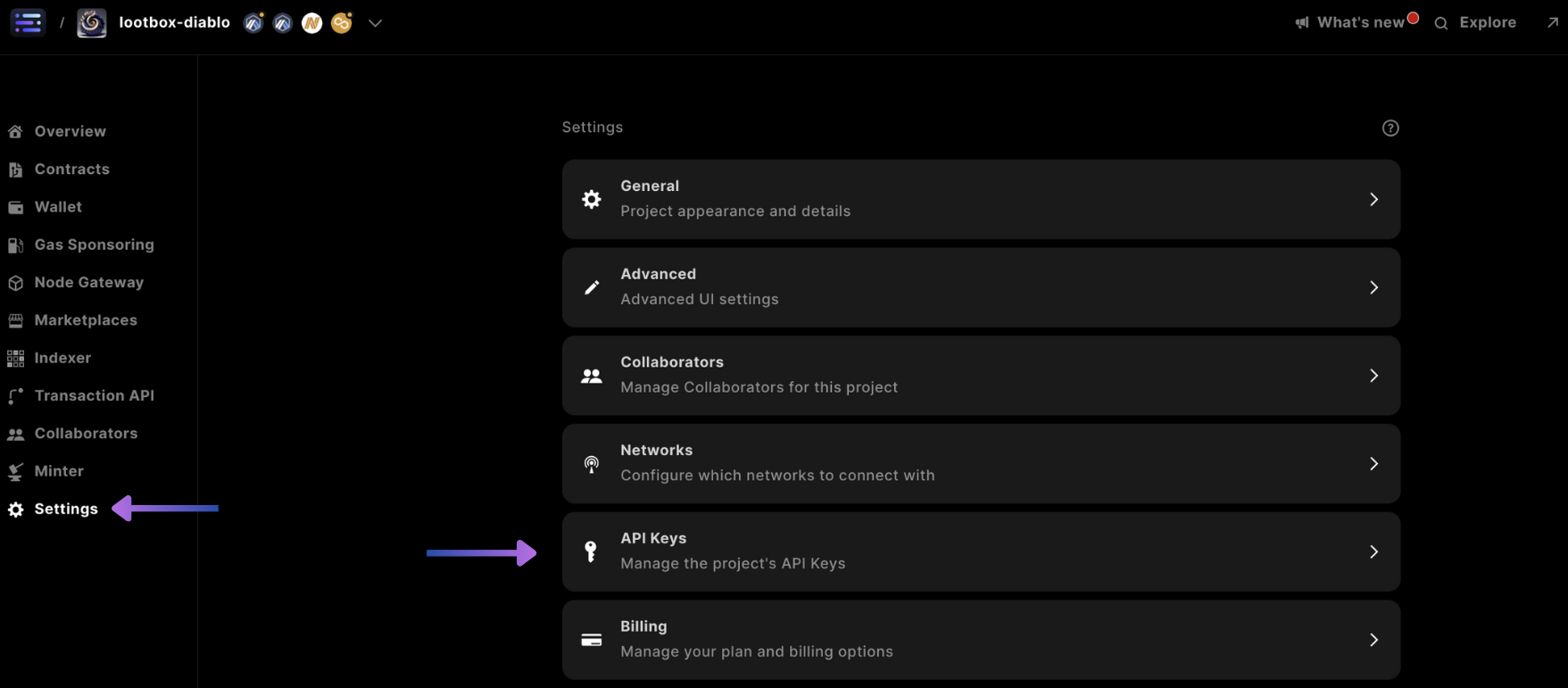
  <Step title="Access Settings">
    First start by accessing settings, and selecting the API Keys

    <Frame>
      <img src="https://mintcdn.com/sequence-0fb8d9e6-api_docs/csTTQfNeitUEy5bt/images/builder/builder_settings_access_keys.png?fit=max&auto=format&n=csTTQfNeitUEy5bt&q=85&s=eaae0455a219b071338925e5c9b316d2" alt="builder settings access keys" width="1757" height="771" data-path="images/builder/builder_settings_access_keys.png" />
    </Frame>
  </Step>

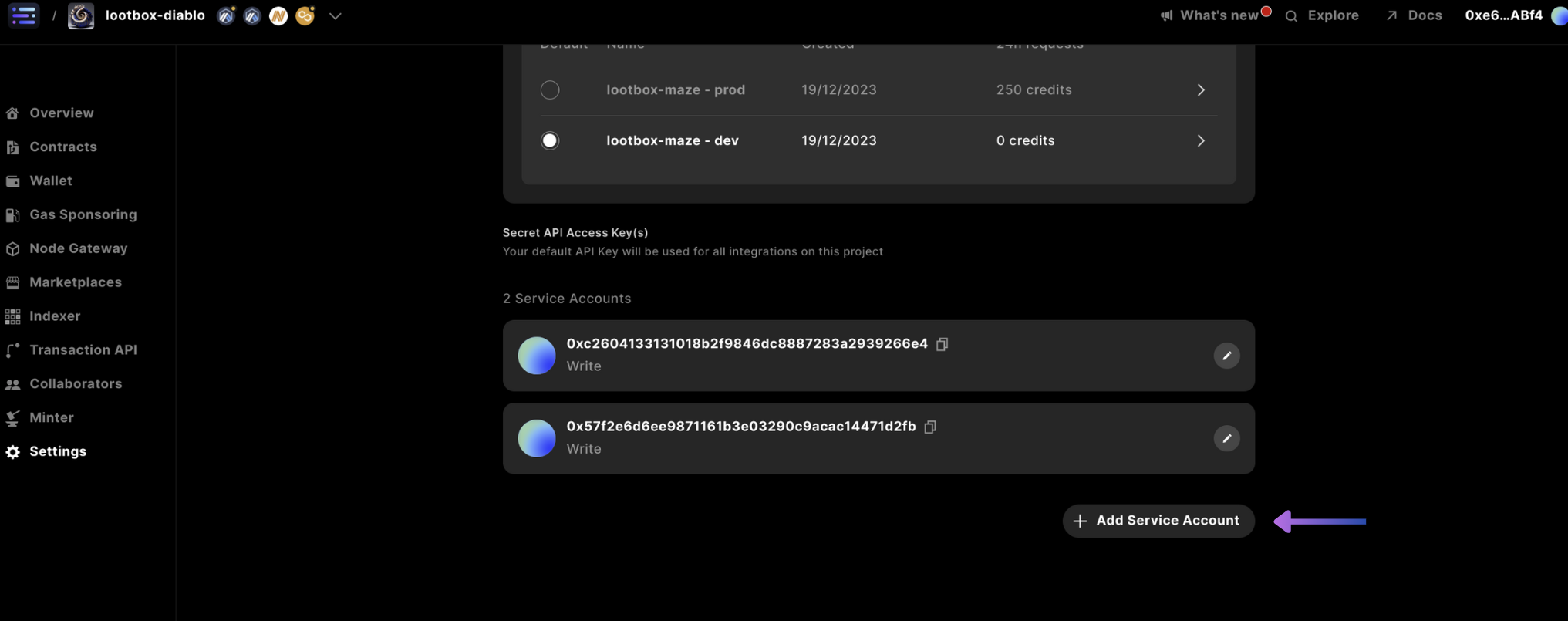
  <Step title="Add Service Account">
    Scroll down and select `+ Add Service Account`

    <Frame>
      <img src="https://mintcdn.com/sequence-0fb8d9e6-api_docs/csTTQfNeitUEy5bt/images/builder/builder_settings_add_service_account.png?fit=max&auto=format&n=csTTQfNeitUEy5bt&q=85&s=265e6ece1824e871d98a1175df7fa070" alt="builder settings add service account" width="2033" height="805" data-path="images/builder/builder_settings_add_service_account.png" />
    </Frame>
  </Step>

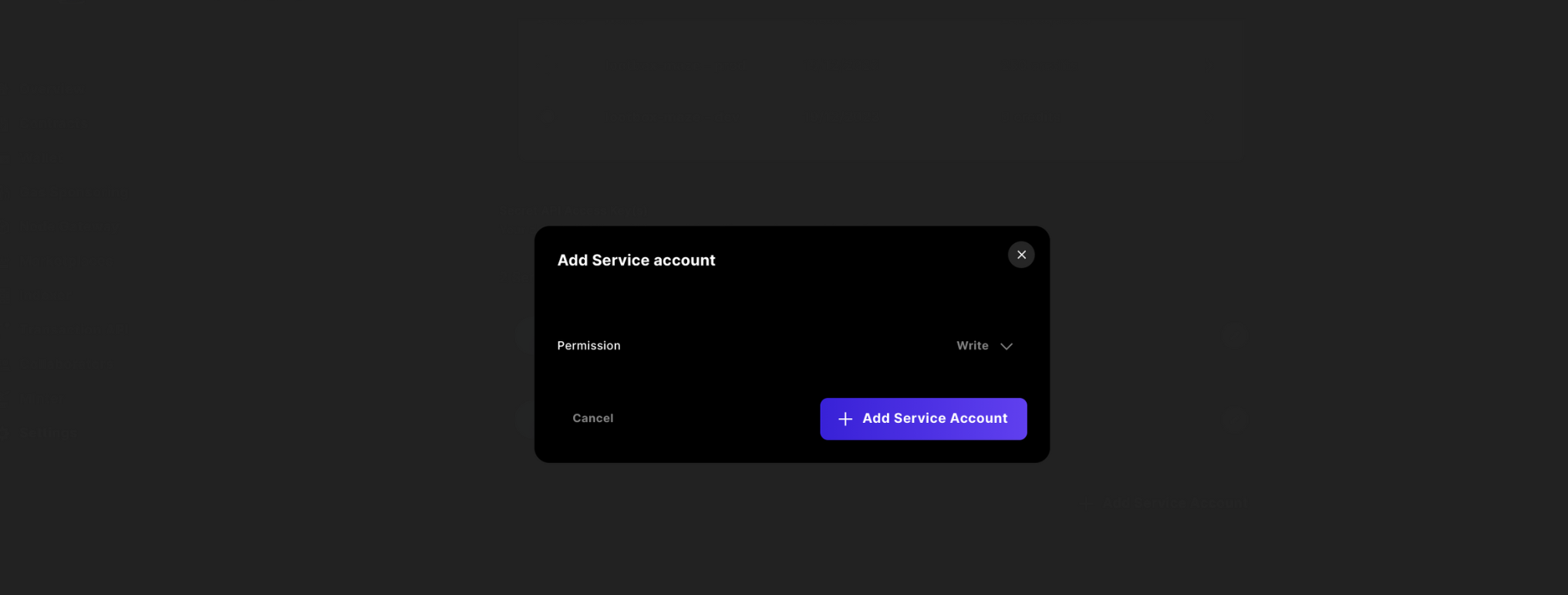
  <Step title="Select Write Permission">
    Then change the access to `Write` and `Confirm`

    <Frame>
      <img src="https://mintcdn.com/sequence-0fb8d9e6-api_docs/csTTQfNeitUEy5bt/images/builder/builder_settings_add_service_account_confirm.png?fit=max&auto=format&n=csTTQfNeitUEy5bt&q=85&s=0d43e1b5a7bfd3f0f8d686dde0ac1635" alt="builder settings add service account" width="2033" height="771" data-path="images/builder/builder_settings_add_service_account_confirm.png" />
    </Frame>

    Finally `copy` the key and store it in a safe location, as you will not have access to this in the future from the Builder Console.
  </Step>
</Steps>

## 3. Embedded Wallet Integration

<Note>
  You can view and clone the template repository [here](https://github.com/0xsequence-demos/template-embedded-wallet-web2-auth)
</Note>

We'll start from scratch building up the project with the necessary pieces, to enable the use of a Sequence Embedded Wallet which enables users to be onboarded to your application using web2 authentication providers.

First start by creating a project folder with `mkdir <project>`, then `cd <project>` and create a `vite` project using React:

```shell theme={null}
pnpm create vite

# or 
yarn create vite

# or 
npm create vite
```

Next, we'll install the correct Wallet-as-a-Service (Waas) package to use the Embedded Wallet:

```shell theme={null}
pnpm install @0xsequence/waas

# or
npm install @0xsequence/waas

# or
yarn add @0xsequence/waas
```

For all of the new files created in the follows steps, have them be created in `/src`

First, create a file called something like `SequenceEmbeddedWallet.ts` with the following initialization code:

```typescript theme={null}
import { SequenceWaaS } from '@0xsequence/waas'

const sequence = new SequenceWaaS({
    projectAccessKey: import.meta.env.VITE_PROJECT_ACCESS_KEY!,
    waasConfigKey:  import.meta.env.VITE_WAAS_CONFIG_KEY!,
    network: 'arbitrum-nova'
})

export default sequence;
```

Then create another file called `useSessionHash.ts` that generates a session hash from the SDK unique to the user:

```typescript theme={null}
import sequence from './SequenceEmbeddedWallet.ts'
import { useEffect, useState } from "react";

export function useSessionHash() {
    const [sessionHash, setSessionHash] = useState("")
    const [error, setError] = useState<any>(undefined)

    useEffect(() => {
        const handler = async () => {
            try {
                setSessionHash(await sequence.getSessionHash())
            } catch (error) {
                console.error(error)
                setError(error)
            }
        }
        handler()
        return sequence.onSessionStateChanged(handler)
    }, [setSessionHash, setError])

    return {
        sessionHash,
        error,
        loading: !!sessionHash,
    }
}
```

Finally, to implement Google auth, you will need the `GoogleOAuthProvider` to wrap your application. The following command will install it and Apple Auth sign in, which will be used later:

```shell theme={null}
pnpm i @react-oauth/google react-apple-signin-auth
```

Then, the starter code is implemented with the previous imported files, in the following code within the `main.tsx` file:

```typescript theme={null}
import React from 'react'
import ReactDOM from 'react-dom/client'
import './index.css'
import App from './App.tsx'
import { useSessionHash } from "./useSessionHash.ts";

import { ThemeProvider } from '@0xsequence/design-system'
import { GoogleOAuthProvider } from '@react-oauth/google'


function Dapp() {
  const { sessionHash } = useSessionHash()

  return (
	<GoogleOAuthProvider clientId="<GOOGLE_CLIENT_ID>" nonce={sessionHash} key={sessionHash}>
		<App />
	</GoogleOAuthProvider>
  );
}

ReactDOM.createRoot(document.getElementById('root')!).render(
  <React.StrictMode>
    <Dapp />
  </React.StrictMode>
)
```

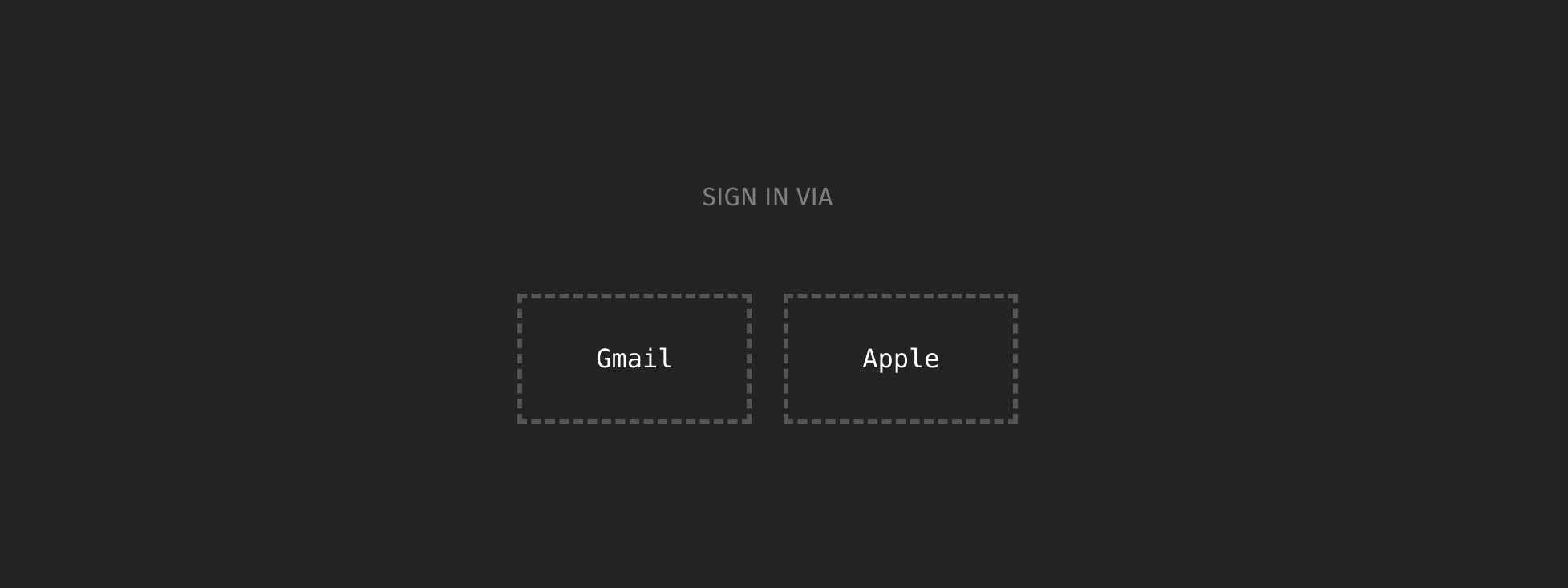
Once your `main.tsx` is ready, lets create the login buttons, which will look like this:

<Frame>
  <img src="https://mintcdn.com/sequence-0fb8d9e6-api_docs/lXs6FR-1Jpmoy0_f/images/guides/treasure-chest/guide_treasure_chest_embedded_wallet_template.png?fit=max&auto=format&n=lXs6FR-1Jpmoy0_f&q=85&s=2d70cbe86c393a2aba5d432bb5bb3de4" alt="embedded wallet social login" width="1955" height="733" data-path="images/guides/treasure-chest/guide_treasure_chest_embedded_wallet_template.png" />
</Frame>

In `App.tsx` use the following code that checks to see if a user is connected and presents a wallet address based on the signed in user, with the various social auth buttons and handlers:

```typescript theme={null}
import { useState, useEffect } from 'react'
import './App.css'
import sequence from './SequenceEmbeddedWallet'
import { useSessionHash } from './useSessionHash'
import { CredentialResponse, GoogleLogin } from '@react-oauth/google';
import AppleSignin from 'react-apple-signin-auth';
import playImage from './assets/play.svg'

function LoginScreen () {
  const { sessionHash } = useSessionHash()

  const [wallet, setWallet] = useState<any>(null)

  const handleGoogleLogin = async (tokenResponse: CredentialResponse) => {
    const res = await sequence.signIn({
      idToken: tokenResponse.credential! // inputted id credential from google
    }, "template")
    setWallet(res.wallet)
  }

  const handleAppleLogin = async (response: any) => {
    const res = await sequence.signIn({
      idToken: response.authorization.id_token! // inputted id token from apple
    }, "template")
 
    setWallet(res.wallet)
  }

  // checks to see if there is a logged in user
  useEffect(() => {
    setTimeout(async () => {
      if(await sequence.isSignedIn()){
        setWallet(await sequence.getAddress())
      }
    }, 0)
  }, [])

  useEffect(() => {

  }, [wallet])

  const signOut = async () => {
    try {
      const sessions = await sequence.listSessions()

      for(let i = 0; i < sessions.length; i++){
        await sequence.dropSession({ sessionId: sessions[i].id })
      }
    }catch(err){
      console.log(err)
    }
  }

  return (
    <>
      {
        !wallet 
      ? 
        <>
          <span className='sign-in-via'>SIGN IN VIA</span>
          <br/>
          <br/>
          <br/>
          <div className="login-container">
          <div className='dashed-box-google'>
              <p className='content'>
                <div className='gmail-login' style={{overflow: 'hidden', opacity: '0', width: '90px', position: 'absolute', zIndex: 1, height: '100px'}}>
                  <GoogleLogin 
                    nonce={sessionHash}
                    key={sessionHash}
                    onSuccess={handleGoogleLogin} shape="circle" width={230} />
                  </div>
                  <span className='gmail-login'>Gmail</span>
              </p>
          </div>
          <div className='dashed-box-apple'>
            <p className='content' 
            style={{position:'relative'}}>
                <span className='apple-login'>
                  {/* @ts-ignore */}
                  <AppleSignin
                    key={sessionHash}
                    authOptions={{
                      clientId: '<replce with com. bundle id>',
                      scope: 'openid email',
                      redirectURI: '<must be a deployed URL>',
                      usePopup: true,
                      nonce: sessionHash
                    }}
                    onError={(error: any) => console.error(error)}
                    onSuccess={handleAppleLogin}
                  />Apple
                </span>
            </p>
            </div>
          </div>
        </>
      : 
        <>
          <div className="login-container">
          <p style={{cursor: 'pointer'}} onClick={() =>signOut()}>sign out</p>
          &nbsp;&nbsp;&nbsp;
          <span >{wallet}</span>
          </div>
        </>
      }
    </>
  )
}

function App() {
  return (
    <LoginScreen/>
  )
}

export default App
```

Then, include a `.env` file in the root of your project, adding it to `.gitignore`, and updating the file with the following values from the Sequence Builder:

```
VITE_PROJECT_ACCESS_KEY=
VITE_WAAS_CONFIG_KEY=
```

<Warning>
  All environment variables must start with `VITE_` to be included in the environment of a vite application
</Warning>

Run your code with the following command in the root folder and give it a try:

```shell theme={null}
pnpm run dev
```

## 4. Deploy A Contract & Sponsor Gas

We will deploy an token contract so we are able to link the AI-generated images to the metadata for any given token. When deploying your contract, the recommended approach is to use an `ERC1155` over an `ERC721`. The benefits of using an `ERC1155`

* Semi-Fungible: which is ideal for game assets that can have multiple copies of the same underlying item.
* Gas Savings: for projects that require multiple tokens as a single ERC1155 can hold many different varieties.

In terms of the gas savings benefit, instead of deploying a new contract for each token type, a single ERC1155 token contract can hold the entire system state, reducing deployment costs and complexity.

To deploy a contract, you can follow [this guide](/solutions/builder/contracts/deploy-an-item-collection) to deploy your ERC1155, and update your `wrangler.toml` with the `CONTRACT_ADDRESS`.

Then, for the minting function to work programmatically so that transactions are gasless for your relayer, you will need to make the Transactions API draw from your account credits on your upgraded billing plan by sponsoring your deployed smart contract address.

To allow the Transactions API to relay transactions without a fee, sponsor gas by following [this guide](/solutions/builder/gas-sponsorship#watch-gas-sponsorship-in-action-in-builder) for the deployed contract.

<Note>
  All Sequence testnets are free
</Note>

## 5. Deploy Transactions API on a Cloudflare Worker

Following the previous step, the Sequence Transactions API can be implemented on a serverless Cloudflare worker so a game or app user interaction is seamless without a confirmation signature or gas payment. In this case, the worker will leverage the Sequence Transactions API to mint tokens to the user's address. You'll also benefit from not having to be worried about transaction speed, throughput or re-orgs, and experience automatic scaling with Cloudflare.

### Minting A Token

If you want to learn how to deploy a Cloudflare Worker from scratch, you can follow [this guide](/guides/mint-collectibles-serverless) on minting a serverless NFT minting service with your deployed `ERC1155` contract or simply clone the [template](https://github.com/0xsequence-demos/demo-cloudflare-worker-treasure-chests/) specific to this guide.

<Warning>
  Ensure that if you're using a Sequence Standard ERC1155 Items Contract, you grant the `MINTER_ROLE` for your relayer account address.
</Warning>

Once setup, we will call the endpoint of the cloudflare instance to mint our NFTs in a later step.

## 6. Generating AI Prompts & Images

When beginning your journey into AI image generation, you will require a source of AI model prompts to produce media. For this guide and demo, we've sourced prompts from the items contained in the [Diablo game](https://d07riv.github.io/diabloweb/).

In the [template](https://github.com/0xsequence-demos/demo-cloudflare-worker-treasure-chests/), we've included code to call an already deployed API and code to parse the response.

With this API, we will showcase how to generate images using the prompt from the deployed Diablo API within the `generate` function within the Cloudflare worker:

```typescript theme={null}
const generate = async () => {
	const url = 'https://flask-production-2641.up.railway.app/'; // External API endpoint
	
	const init = {
		method: 'GET',
		headers: {
		'Content-Type': 'application/json',
		},
	};

	const response = await fetch(url, init); // Fetch data from external API
	const data: any= await response.json(); 
	const defend = Math.random() >= 0.5 ? true : false
	const attributes = []
	// parse the data to create the attributes
	
	return {loot: data[defend ? 'armor' : 'weapon'], attributes: attributes}
}
```

Then complete the `getInferenceWithItem` function in order to get the instantiated inference reference from the Scenario API and pass in a `prompt` which is the generated loot `name` and `type`, as well as some additional parameters model parameters, which can be customized via the [Scenario API docs](https://docs.scenario.com/reference/postmodelsinferencesbymodelid):

<Note>
  For this guide, we landed on the `EulerDiscreteScheduler` scheduler type from the Scenario API based on quality and time, but if you want to experiment with using additional schedulers, you can use [this custom local cli](https://github.com/moskalyk/scenario-gg-benchmark-cli) and check the results in the [Scenario.gg](https://scenario.gg/) dashboard
</Note>

```typescript theme={null}
const getInferenceWithItem = async (env: Env, prompt: any) => {
	try {
		const res: any = await fetch(`https://api.cloud.scenario.com/v1/models/${env.SCENARIO_MODEL_ID}/inferences`, {
			method: 'POST',
			headers: {
				'Authorization': `Basic ${env.SCENARIO_API_KEY}`,
				'accept': 'application/json',
				'content-type': 'application/json'
			},
			body: JSON.stringify({
						"parameters": {
						"numSamples": 1,
						"qualityBoostScale": 4,
						"qualityBoost": false,
						"type": "txt2img",
						"disableMerging": false,
						"hideResults": false,
						"referenceAdain": false,
						"intermediateImages": false,
						"scheduler": 'EulerDiscreteScheduler',
						"referenceAttn": false,
						"prompt": prompt + ' single object on black background no people'
					}
				})
		})

		const data = await res.json()
		console.log(data)
		return {inferenceId: data.inference.id}
	}catch(err){
		console.log(err)
		return {inferenceId: null, err: "ERROR"}
	}
}
```

Then we simply implement the above functions in the react code:

```js theme={null}
	...
	if(mint){
		...
	} else {
		const loot = await generate()
		const inferenceId = await getInferenceWithItem(env, loot.loot.name + " " + loot.loot.type)
		...
	}
	...
```

Once we have the `inferenceId` we can call poll the inference status and return when complete, signified by the `succeeded` status descriptor:

```typescript theme={null}
const getInferenceObjectWithPolling = async (env: Env, id: any) => {
	console.log('getting inference status for: ', id.inferenceId)
	const inferenceId = id.inferenceId

	const headers = {
		'Authorization': `Basic ${env.SCENARIO_API_KEY}`,
		'accept': 'application/json',
		'content-type': 'application/json'
	}

	// Function to poll the inference status
	const pollInferenceStatus = async () => {
		let status = '';
		let inferenceData: any = null;
		while (!['succeeded', 'failed'].includes(status)) {
			// Fetch the inference details
			try {
				const inferenceResponse = await fetch(`https://api.cloud.scenario.com/v1/models/${env.SCENARIO_MODEL_ID}/inferences/${inferenceId}`, {
					method: 'GET',
					headers
				})
				if (inferenceResponse.ok) {
					console.log(inferenceResponse.statusText)
					inferenceData = await inferenceResponse.json();
				}
			}catch(err){
				console.log(err)
			}
			status = inferenceData.inference.status;
			console.log(`Inference status: ${status}`);

			// Wait for a certain interval before polling again
			await new Promise(resolve => setTimeout(resolve, 5000)); // Polling every 5 seconds
		}
		// Handle the final status
		if (status === 'succeeded') {
			console.log('Inference succeeded!');
			console.log(inferenceData); // Print inference data
			return inferenceData
		} else {
			console.log('Inference failed!');
			console.log(inferenceData); // Print inference data
			throw new Error("Scenario API Failed")
		}
	};

	// Start polling the inference status
	return await pollInferenceStatus();
}
```

Again, we add the above function to the react code and pass the inferenceId. When you receive the response, you can obtain the image url with `resObject.inference.images[0].url`:

```typescript theme={null}
	...
	if(mint){
		...
	} else {
		const loot = await generate()
		const inferenceId = await getInferenceWithItem(env, loot.loot.name + " " + loot.loot.type)
		const resObject = await getInferenceObjectWithPolling(env, inferenceId)
		console.log(resObject.inference.images[0].url) // prints image url
		...
	}
	...
```

<Note>
  It should be noted, that you can design applications that return mulitple images per prompt, and allow the user in userspace to choose the correct generation
</Note>

## 7. Store Media to Sequence Metadata Service

With our media `url` from the Scenario API in hand, we can move onto storing the asset to the `Sequence Metadata Service`. This enables you to link the AI-generated image to the specific token metadata - all through REST-API calls.

Each Dungeon Minter treasure chest reward follows the same process where metadata is first stored using the Sequence Metadata API, the `url` and the randomly generated `tokenID` (which allows for parallel requests) is returned to the client. The user then consents, after collectible inspection, to mint the token where the `tokenID` and the user's `address` passed back to the worker created in [Step 5](/guides/treasure-chest-guide#5-deploy-a-cloudflare-worker).

### Implementation

Complete and integrate [this guide](/guides/metadata-guide) in order to build your serverless Media Service leveraging the Sequence Metadata API that uses Cloudflare workers or simply clone our cloudflare [template](https://github.com/0xsequence-demos/demo-cloudflare-worker-treasure-chests/) for this guide.

Once complete, pass the stored media `tokenID` and `url` to the frontend to be rendered, to allow a user to mint after first viewing what they're minting:

```typescript theme={null}
    const randomTokenIDSpace = ethers.parseUnits(String('10000'), 18)
	...
	const jsonCreateAsset = await collectionsService.createAsset({...})
	...
	const response = await uploadAsset(env, projectID, collectionID, jsonCreateAsset.asset.id, String(randomTokenIDSpace), imageUrl)
	return new Response(JSON.stringify({tokenID: String(randomTokenIDSpace), image: response.url }), { status: 200 });
```

## 8. Minting with your Cloudflare Worker

The last step is to finally mint the corresponding tokenId that you linked the metadata to previously to the user's address. Here we post a request to the Cloudflare Worker we created in Step 5 which will mint the token to the user.

```typescript theme={null}
const data = {
	address: address,
	mint: true,
	tokenID: tokenID
};

const res = await fetch(ENDPOINT, {
	method: 'POST',
	headers: {
	'Content-Type': 'application/json',
	},
	body: JSON.stringify(data),
})

const json = await res.json()
```

One important note is that you will likely want to ensure that your Cloudflare workers only process requests from a certain frontend origin, you can simply check the `request.headers` for the `Referrer` value and compare it against the `CLIENT_URL` in the `wrangler.toml`:

```typescript theme={null}
async function handleRequest(request: any, env: Env, ctx: ExecutionContext) {
	const originUrl = new URL(request.url);
	const referer = request.headers.get('Referer');

	if(referer.toString() != env.CLIENT_URL){
		return new Response('Bad Origin', { status: 500 }); // Handle errors
	} 

	...
}
```

## Conclusion

Let's recap what we've done during this tutorial:

**We've covered how to create a Sequence project and
obtain access to our suite of APIs. We've deployed and setup an embedded wallet to ensure smooth gameplay for an example dungeon crawler game.
Additionally, we've used the Sequence platform to deploy a contract, sponsor gas for that contract to simplify the user experience. We also deployed a serverless NFT minter using the Sequence Transaction API which enables your game to scale to millions of players and handle complex blockchain interactions like reorgs.
Furthermore, we've leveraged the scenario.gg API to dynamically create game assets as rewards for players. These images are then linked to the metadata of an NFT using the Sequence Metadata API. You should now understand how to mint AI art for your Scenario.gg and Sequence powered game.**

It's clear how many components go into creating a scalable, secure, and **fun** blockchain-enabled game, but the Sequence platform with Scenario has you covered.

Lastly, you can see all the steps above incorporated in a complete experience with our [dungeon crawler game](https://0xsequence-demos.github.io/demo-dungeon-minter/) to brave the maze and get your own dungeon loot.

Happy building!

## 9. (Optional) Native Mint Restriction Per Wallet

As an option to prevent overuse of the treasure chest minting from specific wallets, a parameter called `DAILY_MINT_RESTRICTION` can be set in the `wrangler.toml` as a maximum mint allowance per day. And, if you feel it's necessary to add an `ADMIN` to your protocol to be able to mint an infinite amount.

These features can be implemented in the code with the following steps:

```typescript theme={null}
async function handleRequest(request: any, env: Env, ctx: ExecutionContext) {
	... 
	const payload = await request.json()
	const { address, tokenID }: any = payload

	// check for admin
	if(address.toLowerCase() != env.ADMIN.toLowerCase() && !await hasDailyMintAllowance(env, address)){
		// check for daily mint allowance
		return new Response(JSON.stringify({limitExceeded: true}), { status: 400 })
	}
	...
}
```

Where `hasDailyMintAllowance` is broken down into 2 functions:

* `fullPaginationDay` of transactions of the users `address`
* `mintCount` that corresponds to the `from` being the `0x` address

### Full Pagination Of Indexer For A Day

<Note>
  As an aside, the Sequence Indexer stack only holds 30 days of transactions for this period, so you can extend the time frame from a day up to this max
</Note>

In order to use the Sequence Indexer, we'll need to `pnpm install @0xsequence/indexer`

Then, to implement we use a while loop that gets the first batch of transactions and the `page.after` value from the indexer, and continuously checks if the timestamp is less than 24 hours appending to a temporary array for each pass. This ensures we get all of the available transactions:

```typescript theme={null}
import { SequenceIndexer } from '@0xsequence/indexer'

const isLessThan24Hours = (isoDate: string) => {
    const dateProvided: any = new Date(isoDate);
    const currentDate: any = new Date();
    const twentyFourHours = 24 * 60 * 60 * 1000; // 24 hours in milliseconds

    // Calculate the difference in milliseconds
    const difference = currentDate - dateProvided;

    // Check if the difference is less than 24 hours
    return difference < twentyFourHours && difference > 0;
}

const fullPaginationDay = async (env: Env, address: string) => {
    const txs: any = []
	const indexer = new SequenceIndexer(`https://${env.CHAIN_HANDLE}-indexer.sequence.app`, env.PROJECT_ACCESS_KEY)

    const filter = {
        accountAddress: address,
    };

    // query Sequence Indexer for all token transaction history
	let txHistory: any
	let firstLoop = true;
    let finished = true;
    // if there are more transactions to log, proceed to paginate
    while(firstLoop || (!finished && txHistory.page.more)){  
		if(firstLoop){
			firstLoop = false
			txHistory = await indexer.getTransactionHistory({
				filter: filter,
				page: { pageSize: 50 }
			})

			for(let i = 0; i < txHistory.transactions.length; i++){
				if(!isLessThan24Hours(txHistory.transactions[i].timestamp)){
					finished = true
				}
				txs.push(txHistory.transactions[i])
			}
		}
        txHistory = await indexer.getTransactionHistory({
            filter: filter,
            page: { 
                pageSize: 50, 
                // use the after cursor from the previous indexer call
                after: txHistory!.page!.after! 
            }
        })
		for(let i = 0; i < txHistory.transactions.length; i++){
			if(!isLessThan24Hours(txHistory.transactions[i].timestamp)){
				finished = true
			}
			txs.push(txHistory.transactions[i])
		}
    }

    return txs
}
```

### Mint Count For A Day

All collectibles minted from the `ERC721` and `ERC1155` standard Sequence contracts are `from` the `0x` address:

```typescript theme={null}
const mintCount = (env: Env, txs: any) => {
	let count = 0
	for(let i = 0; i < txs.length; i++){
		if(
			txs[i].transfers[0].from == '0x0000000000000000000000000000000000000000' 
			&& txs[i].transfers[0].contractAddress == env.CONTRACT_ADDRESS.toLowerCase()
		) count++
	}
	return count
}
```

### Has Daily Mint Allowance

```typescript theme={null}
const hasDailyMintAllowance = async (env: Env, address: string) => {
	const txs = await fullPaginationDay(env, address)
	const count = mintCount(env, txs)
	return count < env.DAILY_MINT_RESTRICTION
}
```
